What is important to know about Dinastycoin payments?
How to make a payment using the Dinastycoin graphical user interface
How to check if your payment transaction has been confirmed
What should I do if my transaction is not confirmed or has not gone through?
How to prove that a payment has been made
What is important to know about Dinastycoin payments?
Dinastycoin transactions are irreversible : cannot be cancelled once confirmed (included in a block ) from a miner. If you sent a transaction and it was confirmed by a miner, the only way to get your money back is to ask the recipient to send it back to you.
Dinastycoin transactions are private : who observes the blockchain They won't know important details about your transaction, such as the sender's address, the amount, and the recipient's address. The recipient of your payment will know all the transaction details, except the sender's address (your wallet address) and the transaction description.
Dinastycoin transaction fee is paid by the sender Unlike credit cards, where the merchant pays the transaction fee, with Dinastycoin the sender pays the transaction fee, which is used to incentivize miners to include the transaction in a block.
The Dinastycoin transaction fee does not depend on the amount sent. : depends on the network congestion at the time and the size of the transaction data, which increases with the number of recipients and coins spent.
How to make a payment using the Dinastycoin graphical user interface
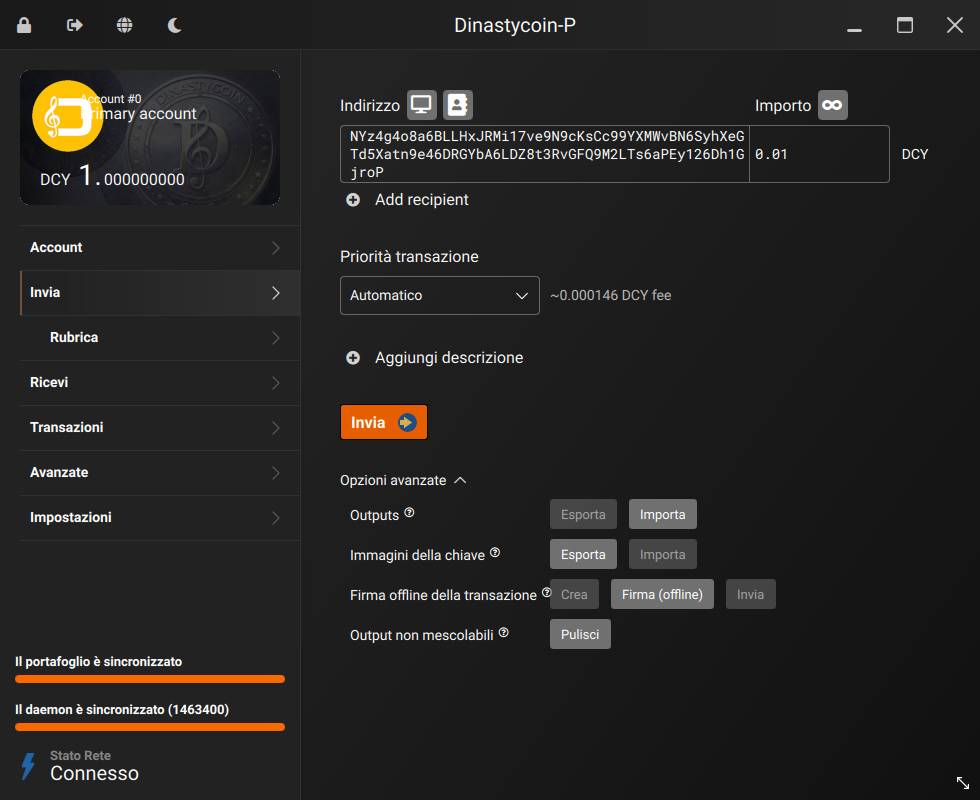
1) Go to the page Send . To send a transaction, your node and wallet must be synchronized (this status is visible in the lower left corner) and the currently selected account must have an available balance (unlocked).
2) In the field Address ( Address ) , enter the recipient's address. If it is a Dinastycoin address, it must begin with NY… o NX…
Alternatively, you can import an address using the buttons Grab QR code from screen and Import from address book at the top, immediately to the right of the "Address" text)
You can also paste a Dinastycoin payment request into this field with a requested amount, starting with Dynastycoin:… .
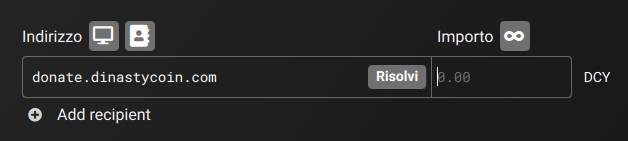
This field also supports addresses OpenAlias , i.e. human-readable addresses (e.g., donate.dinastycoin.org ). If you enter an OpenAlias address, Resolve A button will appear. Click it to retrieve the corresponding Dinastycoin address.
3) In the Amount field, enter the amount in DCY. You can also click the button with the symbol ∞Send all unlocked balance , which will create a transaction that will send all unlocked balance from the currently selected account.
Below the DCY amount, you can see the amount converted to fiat currency (USD or EUR). If your wallet doesn't display it, go to the page Settings > Interface to enable this feature.
4) Click on Add recipient ( Add recipient ) If you want to add more recipients to the transaction, a single transaction fee applies to a transaction with multiple recipients, but the more recipients, the higher the fee.
Sending to multiple recipients does not compromise your privacy, as each recipient will not know the other recipients of the transaction, nor the amount sent to each of them.
5) If you are using Dinastycoin's GUI in advanced mode, you will see the menu Transaction priority. It is recommended to leave it active on ( Automatic ).
For privacy reasons, you can't set a custom fee, but you can choose between four fee levels. You don't need to change your fee level unless the Dinastycoin network is congested.
The transaction fee does not depend on the amount sent, but on the network congestion at the time and the size of the transaction data. The main factors that increase the size of the transaction data are a larger number of recipients and a larger number of coins spent. Sending 10 DCY using 10 coins (10 sends, each worth 1 DCY) requires a larger transaction fee than sending 10 DCY using a single coin (1 send worth 10 DCY). The more transactions you send or receive, the more coins will be in your wallet. It is currently not possible to view or manage individual coins on the Dinastycoin GUI. This is an advanced feature and most users will not need it. If you do need it, this feature is available on the Dinastycoin CLI wallet.
6) Optionally, click on Add description ( Add description ) to add a note to your transaction, which will be saved in your wallet and can be viewed later on the transaction page. Transaction history ( History ) . This feature is for your control only: it will not be sent to the recipient or recorded on the blockchain.
7) Click the button Send .
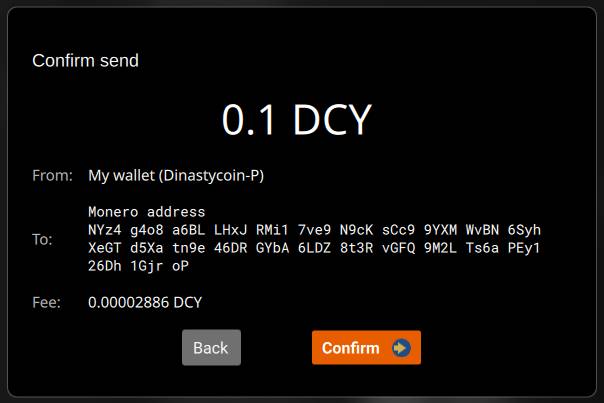
8) A transaction confirmation dialog box will appear. Verify that the transaction details are correct and click the button. Confirm ( Confirm ) .
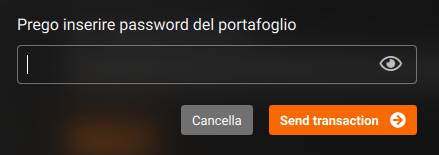
9) Enter your wallet password and click the button Send transaction .
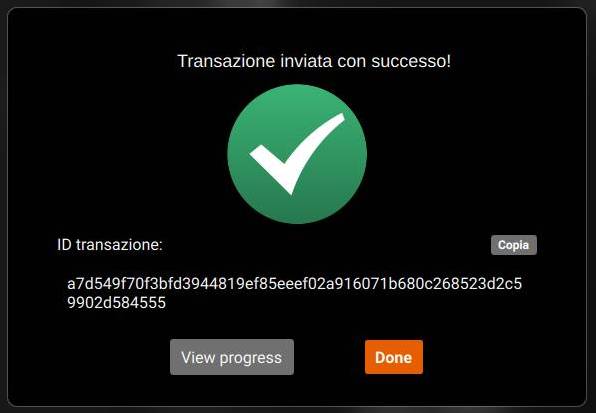
10) Next, the dialog box will appear: Transaction successfully sent! .
This means that your transaction has been submitted to the Dinastycoin network and is now waiting to be confirmed (included in a block) by a miner. Now all you have to do is wait for the transaction to be confirmed, which takes an average of 2 minutes. Once the transaction has been submitted to the network, there's nothing you can do to speed up the confirmation process.
This dialog will also show the’ Transaction ID (txid), a unique identifier for your Dinastycoin transaction. Optionally, click the button Copy ( Copy ) to copy it to your clipboard. You can insert it into your Transaction history page or block explorers to view transaction details. Sometimes a recipient may also ask you to send a transaction ID to verify that you sent Dinastycoin.
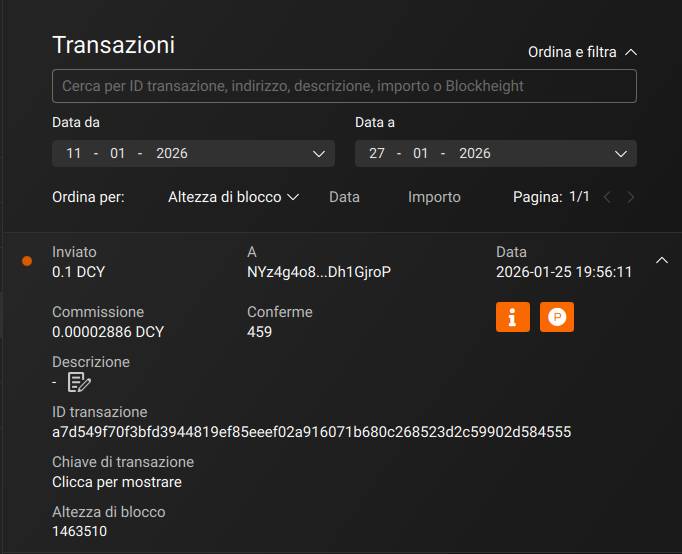
Click on the button View progress to open the page Transactions and view transaction details. On this page, you can monitor the blockchain and check whether your transaction has been confirmed.
How to check if your payment transaction has been confirmed
The pages Transactions The page lets you see if your payment transaction has been confirmed.
There are three possible states for the sent transaction:
Sent (pending) Your transaction has been sent to the Dinastycoin network but is still awaiting confirmation. Please wait a bit until a miner includes your transaction in a block, confirming it. This process takes an average of 2 minutes, but can sometimes take longer.
Envoy: Your transaction has been included in a block by a miner and is now considered confirmed. Block height ( Blockheight ) You can see the block number your transaction was included in. Confirmations You can see how many blocks have been mined since your transaction was included in a block.
Sent (failed)Something went wrong and your transaction wasn't sent to the Dinastycoin network. Read the following section to see how you can fix this.
What should I do if my transaction is not confirmed or fails?
First of all, don't panic. With Dinastycoin, your money can't get lost in limbo. If you send a transaction and it isn't confirmed or fails, your money isn't at risk of being lost. The money isn't taken from your wallet and sent somewhere before reaching the recipient's wallet. There are only two possibilities: either the transaction hasn't been confirmed and the money is still yours, or it has been confirmed and the recipient now has the money.
Ask this for support e-mail official.

 English (UK)
  Italiano